How to Remove Background from GIF — Step-by-Step Guide
 AdWorker Team··Updated June 28, 2026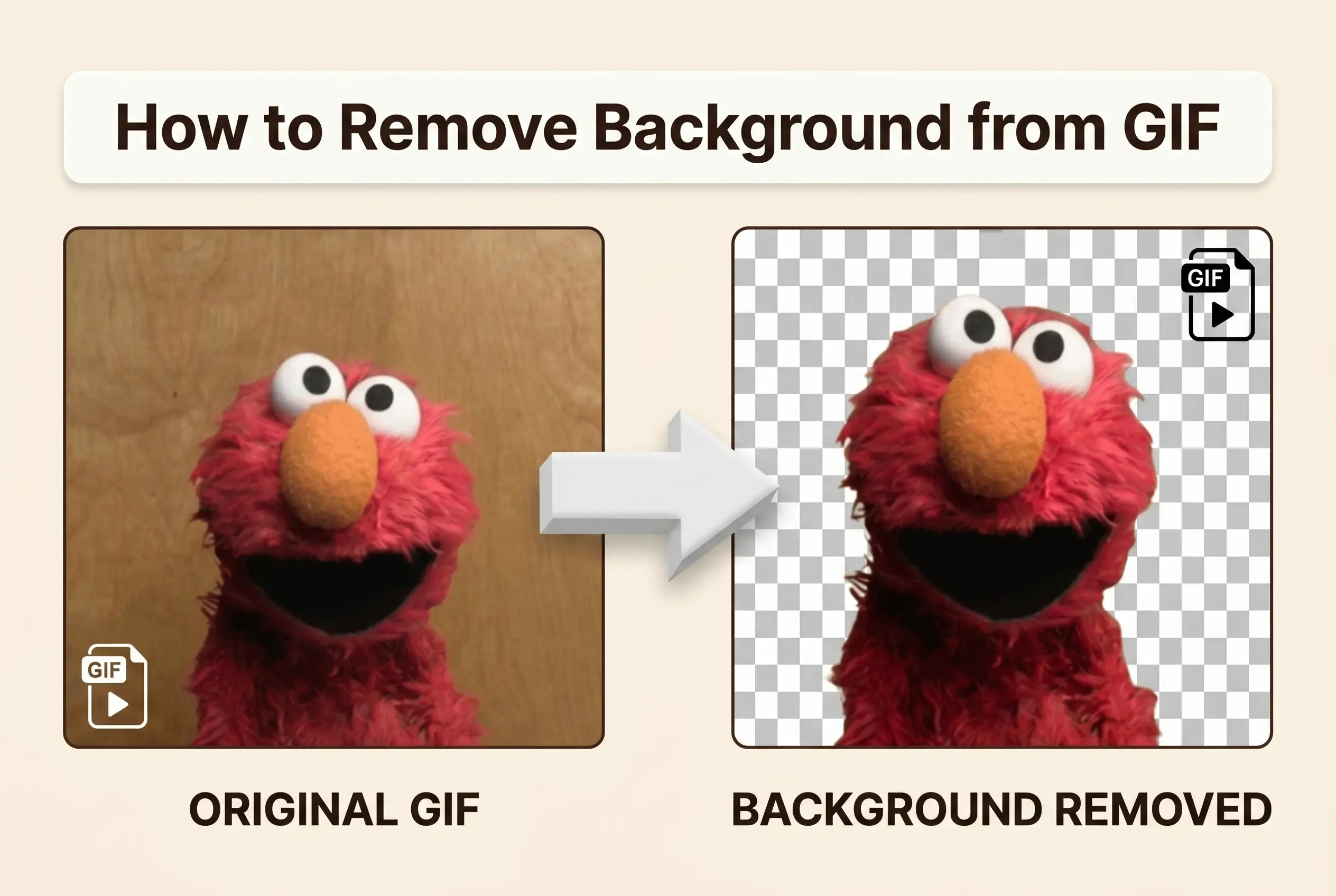
Removing the background from a GIF is fundamentally different from doing it on a static image. A GIF is a sequence of frames — sometimes dozens — and every single frame must be processed individually for the animation to survive. This is why most online background removers, including Remove.bg, do not support animated GIFs at all. You need a tool built specifically for multi-frame processing — one that deconstructs the GIF, isolates the subject in every frame, and reassembles the animation with a transparent background. Whether you need to remove a white background from a GIF, delete a GIF background from a complex scene, or simply remove the background from GIF files for stickers and memes, this guide covers every approach — from AI-powered online tools to manual Photoshop workflows — so you can pick the method that fits your needs.
Start here: GIF background remover — free, no account needed.
Why Removing Background from a GIF Is Different
If you have ever used a background remover on a JPG or PNG, you know the drill — upload, wait a few seconds, download. The tool analyzes the image once, identifies the subject, separates it from the background, and you are done. One image, one pass.
A GIF does not work that way.
Static Image vs Animated GIF — The Key Difference
A static image is a single frame. A single set of pixels. The background remover looks at it once and makes a decision: these pixels are subject, those pixels are background. Done.
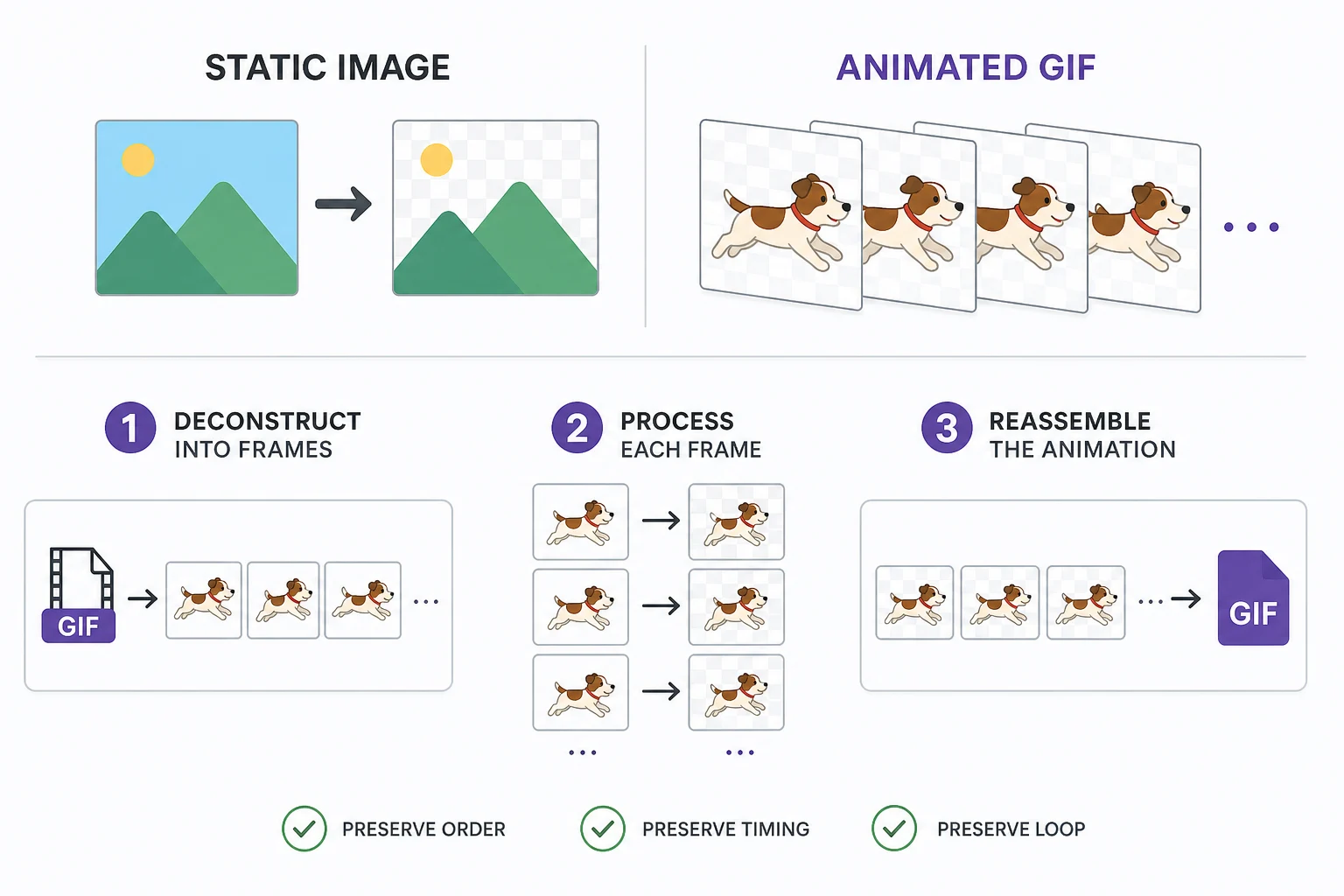
An animated GIF is not one picture — it is a container holding multiple images played in sequence. A short three-second GIF can contain 30, 60, or even 100 individual frames. To remove the background from an animated GIF, the tool must:
- Deconstruct the GIF into every individual frame
- Process each frame separately — isolating the subject from the background in every single one
- Reassemble the frames back into a working animation, preserving the exact frame order, timing, and loop settings
If any single frame is missed or processed incorrectly, the animation glitches — the background flickers back, the subject warps, or the GIF stops animating entirely.
Why Most Background Removers Fail on GIFs
This frame-by-frame requirement is why the vast majority of background remover tools — even the most popular ones — simply do not support GIFs. The engineering effort to handle multi-frame processing at scale is significant, and the market for static image background removal (product photos, portraits, real estate) is orders of magnitude larger.
Remove.bg, the most well-known AI background remover, processes hundreds of millions of static images but has never supported animated GIFs. The same goes for most general-purpose tools — they are built for single-frame input and produce single-frame output. Upload a GIF, and they either reject it outright, process only the first frame, or output a static PNG — none of which is what you want. This is why searching for a way to remove backgrounds from GIFs often leads to dead ends on general-purpose tools: they were never designed for multi-frame animation.
Even tools that do claim to support GIFs often come with hidden limitations:
| Limitation | Result |
|---|---|
| Only removes solid-color backgrounds | Fails on gradients, patterns, complex scenes |
| Outputs a static image instead of animated GIF | The animation is lost |
| Watermarks the output | Unusable for professional work |
| Requires a paid subscription after 1-2 uses | Not truly free |
This is where a background remover built specifically for GIFs makes the difference. Instead of treating the GIF as an afterthought bolted onto a static-image pipeline, a dedicated tool is architected from the ground up to handle frame sequences — deconstructing, processing, and reassembling animations without losing a single frame or degrading quality.
In the next section, we will walk through exactly how to use one — starting with the most common use case: removing a white background from a GIF.
White Background Removal
White backgrounds are the most common type people want to remove from GIFs — product demos, sticker exports, and design tool defaults almost always come with a white canvas baked in. The high contrast between a white background and most subjects makes this the easiest type to remove cleanly, producing sharp edges and consistent results across all frames. For static product photos, a dedicated white background tool handles this in one click.
For a complete walkthrough — including near-white backgrounds (#F5F5F5 vs #FFFFFF), edge verification methods, and common problems like white fringe — see our guide to removing white backgrounds from GIFs.
The same GIF background remover tool handles all background types — white, black, solid colors, and complex scenes. The next section covers the full step-by-step process for any source GIF.
How to Remove Background from Any GIF — Step-by-Step
Whether you are working with a product demo, a reaction meme, or a custom animation, the process follows the same three core steps — and takes under a minute from upload to download. Here is exactly how to do it, with tips to get the cleanest possible result on your first try.
Step 1 — Upload Your GIF
Use the remove background from gif tool — drag your file onto the upload area, or click to browse and select it from your device.
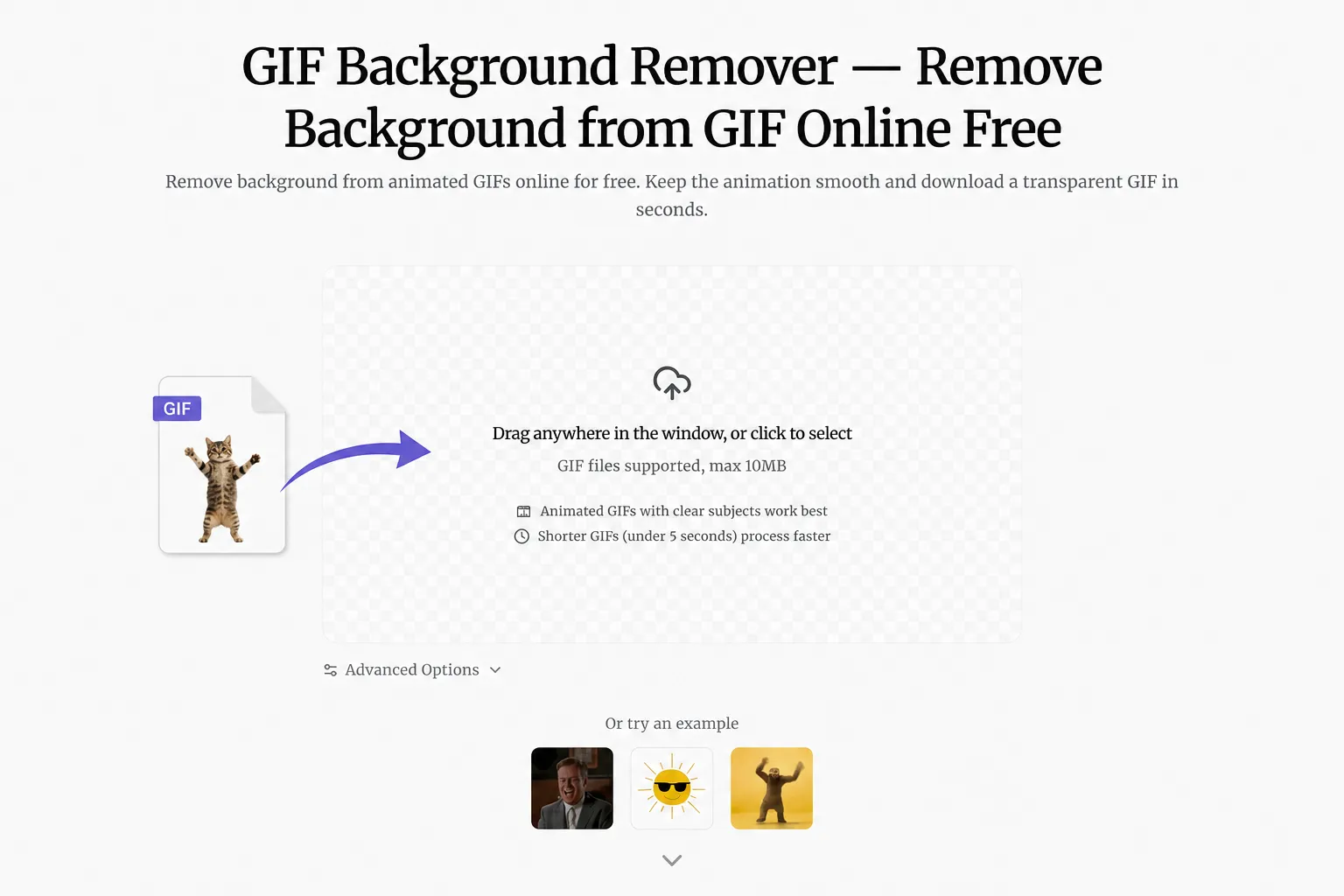
Supported formats and limits:
| Detail | Specification |
|---|---|
| Input format | GIF (animated, single-frame GIF also supported) |
| Max file size | 10 MB |
| Max duration | No hard limit, but GIFs under 10 seconds process fastest |
| Frame count | Supports GIFs with hundreds of frames |
If your GIF file exceeds 10 MB, trim the animation to fewer frames or reduce the frame dimensions before uploading. A lighter file processes faster and reduces the chance of timeout errors on long animations with hundreds of frames.
Step 2 — Let the AI Process Every Frame
Once uploaded, the AI starts working immediately — no need to click a separate "Start" button or configure settings. It detects the frame count, frame rate, and background type on its own, and selects the best processing mode automatically.
For most GIFs — product demos, stickers, memes, simple animations — the default mode handles everything perfectly. The AI uses a combination of semantic segmentation (understanding what the subject is) and edge detection (finding the precise boundary between subject and background) on every individual frame. It does not simply delete a range of color values — the way a basic color-key filter would remove a background by replacing one hex code with transparency. It understands context, not just pixels. This is what allows it to remove the background on a GIF with clean edges, even when the background is not a single flat color.
Processing typically takes 15 to 60 seconds depending on the length and complexity of your GIF. Shorter, simpler GIFs with high-contrast backgrounds finish the fastest.
Step 3 — Preview and Download Your Transparent GIF
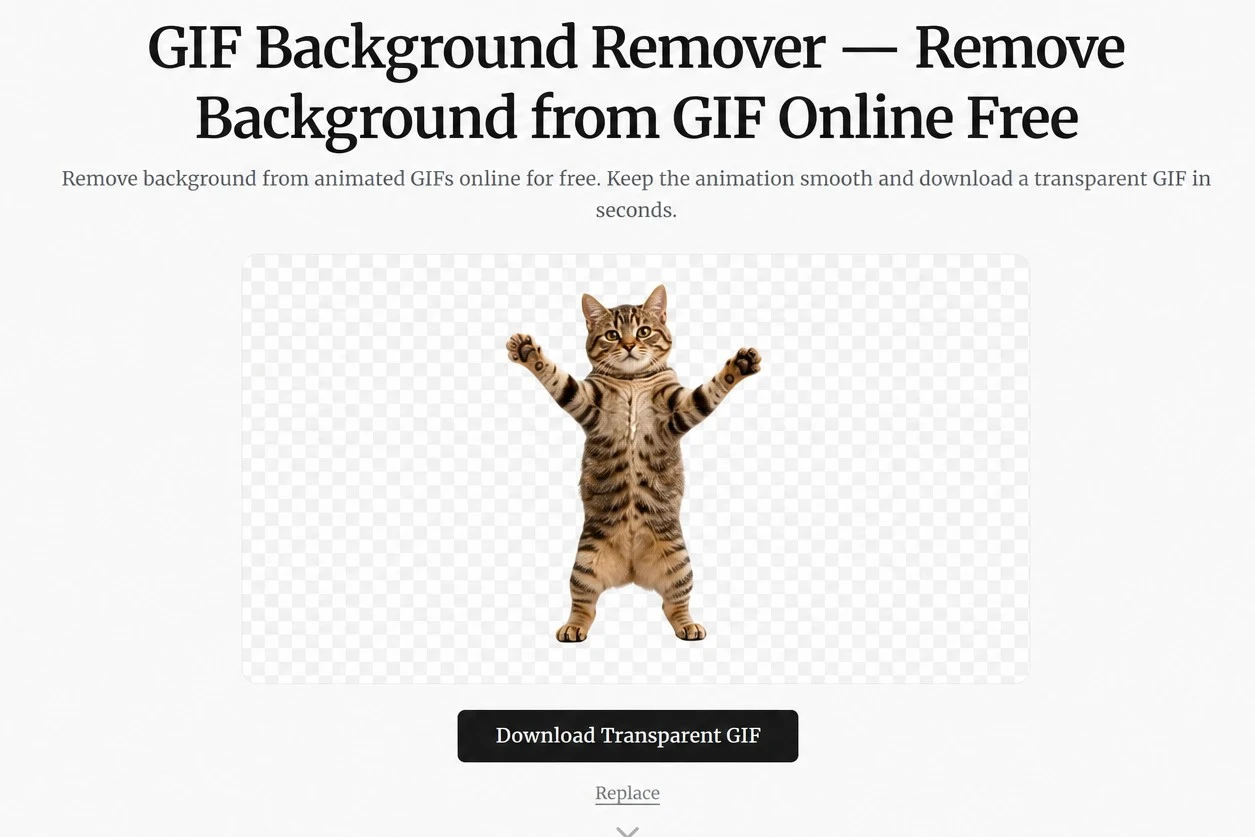
When processing completes, the tool shows a side-by-side comparison — original GIF on the left, transparent GIF result on the right. The output has a transparent background, meaning there is no background at all — the subject sits on a completely clear canvas, ready to be placed on any color, image, or layout.
What to check before downloading:
- Inspect the subject edges. Look closely around the subject outline. There should be no white or colored pixels lingering from the original background, and no holes or transparency leaks inside the subject itself.
- Watch the full animation loop. Let the GIF cycle at least twice. Make sure every frame rendered correctly — no flickering, no frames where the background reappears, no distortion in the subject.
- Compare to the original. Use the side-by-side view if available. The goal is a clear background GIF where the subject looks exactly like the original, just without the background.
Satisfied with the result? Click Download. The output is a standard animated GIF file with a transparent background — compatible with any website, social media platform, messaging app, or design tool. The animation timing, frame order, and loop settings are preserved exactly as they were in the original.
If the edges are not perfectly clean — which can happen with complex backgrounds or soft gradients — reprocess the same GIF. The AI processing is not identical across runs, and the second pass often produces a cleaner edge at ambiguous boundaries. There is no limit on reprocessing — run the same GIF as many times as needed until the result looks right.
Try it now: Background remover for GIFs — start to finish in under a minute.
How to Choose a Background Remover for GIFs — AI vs Manual vs Free Tools
By now it should be clear that a dedicated GIF tool is the only practical way to remove a background from an animation. But which approach should you use? AI-powered online tools? Manual Photoshop editing? Free browser-based filters? And what actually matters when comparing your options?
Why AI Handles GIF Backgrounds Better Than Manual Editing
There is a reason that AI-powered GIF processing tools have replaced manual editing workflows. The math simply does not work out for doing it by hand.
Imagine you have a three-second GIF at 20 frames per second. That is 60 frames. To remove the background manually in Photoshop, you would need to:
- Import the GIF and convert each frame to a separate layer — 60 layers
- Use the Magic Wand, Quick Selection, or Pen Tool to isolate the subject in each layer
- Create a layer mask for every single frame
- Export as a new GIF, verifying the frame order and timing are intact
Even for an experienced designer working at peak speed, this takes 15 to 45 minutes for a single GIF. And if even one frame has a rough edge or a missed background pixel, the entire animation flickers. Correcting it means going back into that specific frame, fixing the mask, and re-exporting.
An AI tool does the same work in under 60 seconds. More importantly, it maintains consistency across frames — the AI applies the same subject-detection logic to every frame, so there is no variation in edge quality from one frame to the next. Manual editing inevitably introduces subtle inconsistencies because a human cannot trace the exact same boundary 60 times in a row.
This is not just a speed advantage. For multi-frame animations, AI produces a more consistent result than manual editing. The tool you use does not need to be the most expensive one — it needs to be the one built for the job.
Free vs Paid GIF Tools — What Actually Matters
There are dozens of tools for removing GIF backgrounds online, and most of them fall into two categories: free tools with hidden costs, and paid tools that are overkill for occasional use. Here is what actually matters when choosing one:
| Feature | Why It Matters |
|---|---|
| Handles all frame types | Some tools skip frames or only process the first one |
| Outputs animated GIF | Many tools output a static PNG — the animation is lost |
| No watermark | Watermarked output is unusable for any professional purpose |
| No account required | Sign-up walls add friction and collect your email |
| Unlimited free uses | Some tools limit you to 1-2 free uses, then demand a subscription |
| Accurate edges on complex backgrounds | Cheaper tools only handle solid-color backgrounds well |
A free online tool that checks all of these boxes is rare. Most tools compromise on at least one — they watermark the output, cap free usage, or silently degrade quality on complex frames. The ones that do deliver clean results without watermarks tend to require an account or paid subscription after the first few downloads.
The tool we built at AdWorker exists because we ran into exactly these frustrations ourselves — needing to remove a white background from a product GIF, finding that most tools rejected the file or ruined the animation, and realizing that the few tools that did work were either expensive or placed a giant watermark on the output. You can remove background from animated gif files on this page for free, with no watermark and no account — because that is what a useful tool should do.
What Happened to Unscreen? (And Other Alternatives)
If you have searched for a way to remove backgrounds from GIFs before, you may remember Unscreen — one of the most popular free tools for removing backgrounds from animated GIFs. Unscreen was built by the team behind Remove.bg, and for a long time it was the go-to solution for transparent GIFs.
Unscreen was shut down permanently. The site no longer accepts uploads, and the tool is no longer available.
For former Unscreen users, this created an immediate problem: where do you go now to remove the background from an animated GIF? The instinct might be to try Remove.bg — but as mentioned earlier, Remove.bg has never supported animated GIFs. It was built for static images, and that has not changed.
Alternatives to Unscreen for GIF Background Removal
Here are the options available today, with an honest assessment of each:
AdWorker GIF Background Remover. Purpose-built for animated GIFs with frame-by-frame AI processing. Free, no account required, no watermark. The closest direct replacement for Unscreen — same workflow, same output format, same "upload and download" simplicity. GIF background remover — try it here.
ezgif Background Remover. A free option that works directly in the browser. ezgif is a capable tool, but its background remover is a simple color-key filter — it replaces a single color value with transparency across all frames. This works for GIFs with perfectly uniform solid-color backgrounds, but it struggles with gradients, shadows, anti-aliased edges, and anything that is not a single flat hex code. It also does not use AI for subject detection, so complex scenes are not handled well.
Adobe Photoshop. The manual option. Photoshop can remove backgrounds from animated GIFs, but the workflow involves converting the GIF to a video timeline, applying masks frame by frame, and re-exporting. It works, but it is the opposite of quick.
Canva. Canva's background remover is AI-powered and works well on static images, but it does not support animated GIFs. Uploading a GIF to Canva only processes the first frame and outputs a static PNG. Not a viable option for animated content.
For most users who just need to remove the background from a GIF — whether it is a product demo, a sticker, a meme, or a stream asset — a dedicated online tool for GIF background removal is the practical choice. The Unscreen shutdown left a gap, but the same workflow is available today without paying for a subscription or downloading software.
Frequently Asked Questions
Can I remove a GIF background in Photoshop, Canva, or ezgif?
Photoshop: technically yes, but the manual workflow — converting the GIF to a video timeline, creating layer masks for each frame, and re-exporting — takes 15 to 45 minutes for an experienced user. It is not practical for quick edits or batch work. For those searching how to remove background from gif in photoshop, the short answer is: it is possible, but it is the slowest option by a wide margin.
Canva: no. Canva's background remover only processes the first frame of an animated GIF and outputs a static PNG. It does not support animated output. Searching how to remove background from gif in canva will lead you to workarounds involving third-party tools — Canva alone cannot do it.
ezgif: partly. ezgif uses a color-key filter rather than AI — it replaces a single color value with transparency. This works for perfectly uniform solid-color backgrounds, but produces rough edges on gradients, shadows, and complex scenes.
For all three cases, a dedicated AI tool built for animated GIFs is the faster and more reliable option. You can remove gif background online — no manual editing, no software install, and no single-color limitations.
How to remove bg from gif without Photoshop?
If you do not have Photoshop — or do not want to spend significant time manually masking frames — the simplest alternative is an online tool that processes GIF backgrounds automatically. The workflow is the same regardless of which tool you use: upload the GIF, let the AI remove the background from every frame, preview the transparent result, and download. No software to install, no timeline to manage, and no frame-by-frame masking. The tool handles the frame decomposition and reassembly for you.
What is the difference between removing a GIF background and a static image background?
A static image background remover — like Remove.bg or the tool built into Canva — processes a single frame. It analyzes the pixels once, identifies the subject-background boundary once, and outputs one transparent PNG. One image, one pass, one result. This is a solved problem and there are dozens of reliable tools for it. If you need to remove the background from a JPG or PNG, use a standard background remover — it will take under 5 seconds.
Removing the background from a GIF is a fundamentally harder job. The tool must:
- Deconstruct the animation — extract every individual frame from the GIF container
- Process each frame independently — apply subject detection and background removal to every single frame, maintaining consistent edge quality across all of them
- Reassemble the animation — rebuild the GIF with the original frame order, timing, loop settings, and color palette, but with transparent pixels where the background used to be
This multi-frame pipeline is what makes GIF background removal an engineering challenge. It is not "static image removal × N frames" — the reassembly step requires understanding the GIF format at a container level, including frame disposal methods, transparency optimization, and color table management. This is why general-purpose tools skip GIF support entirely: the engineering cost of building a reliable multi-frame pipeline is high, and the market is smaller than for static images.
The practical takeaway: if you search for a tool to remove the background from a static photo, any background remover will work. If you search for a tool to remove the background from an animated GIF, you need one that was purpose-built for the job — and those are much rarer.
How long does it take to remove a GIF background manually vs with AI?
Manual editing in Photoshop is slow. You must import the GIF, convert every frame to a separate layer — often 30 to 100+ layers for a short animation — create masks for each one using the Magic Wand or Pen Tool, verify edge quality across all frames, and re-export while preserving exact frame timing and loop settings. If even one frame has a rough edge, the entire animation flickers.
An AI-powered tool completes the same task in under 60 seconds. More importantly, the AI produces more consistent results because the same subject-detection logic is applied uniformly to every frame. Manual editing inevitably introduces subtle variations from one frame to the next — a human cannot trace the exact same boundary 60 times in a row. For multi-frame animations, AI is not just faster; it produces a more consistent result.
Why do most online background removers fail on animated GIFs?
Most background removers — including well-known tools like Remove.bg — are architected for single-frame images. They expect one input image, analyze pixels once, and produce one output. Upload a GIF, and they either reject it outright, process only the first frame, or output a static PNG — none of which is what you want.
An animated GIF is not one image: it is a container holding dozens or hundreds of frames played in sequence. To process a GIF correctly, the tool must deconstruct the container, isolate the subject in every frame individually, and reassemble the animation without losing frame order, disposal methods, transparency optimization, or color table data. The engineering effort to build this multi-frame pipeline at scale is significant, and the market for static images (product photos, portraits, real estate) is orders of magnitude larger — so most tools skip GIF support entirely.
What file size and format limits should I know before uploading a GIF?
Most online GIF processing tools accept animated GIF files up to 10 MB, with no strict limit on frame count or duration. However, shorter GIFs under 10 seconds with fewer than 200 frames process fastest and produce the most reliable results.
If your GIF exceeds the size limit, you can trim the animation to fewer frames or reduce the frame dimensions before uploading. Very low-resolution GIFs under 200px may produce rougher edges because the AI has fewer pixels to work with — standard web resolutions of 400px and above yield much cleaner results. For best results, use a source GIF where the subject is visually distinct from the background with high contrast, and prefer GIFs with clean solid-color backgrounds when possible.